Have you ever opened the Control Panel in Windows 7 and thought there
is no reason to have some of the icons listed? Today we take a look at
how to remove unwanted or unneeded items from Control Panel in Windows
7.
Delete CPL Files
In this example we want to remove the Realtek HD Audio Manager
because we have a new sound card and don’t use the integrated sound that
came with it.
![sshot-2010-09-13-[16-41-14]](https://lh3.googleusercontent.com/blogger_img_proxy/AEn0k_sRDzE3N_xSTD2qMYOU0ldTASvQ7Ghc7T-27_7RPupHJz_uOfxDzeV0dCrKK9dHOCKfawm2FHDHSGCi8XVmrV1LtNH-ePLpB0IkWQd6UwErBYC0QHd6qe_iiCYxmtxFfAMQbJfFx5PfwR1CBUiejI310ziF_A=s0-d "sshot-2010-09-13-[16-41-14]")
We can delete the CPL file associated with the icon. You will need to
have administrator privileges so make sure you’re logged in as Admin.
Then navigate to the following directory.
C:\Windows\System32
Once there instead of scrolling through everything to find what you need, simply type
*.cpl into the Search field in Explorer. This is a “wildcard” search that will bring up all the CPL items in the directory.

This should easily allow you to scroll through and find the one you want to remove. For this instance it’s
RTSnMg64.cpl for Realtek Sound Manager. You might want to backup the file or
create a System Restore Point before deleting it.

After deleting the file you need to close out of Control Panel and when you open it back up, the item will be gone.

Hide Items in Control Panel Using the Registry
For some items you won’t be able to easily delete the CPL file if
it’s a Windows system file or in use. You could use a program like
Unlocker, but we can tweak the Registry to hide items in Control Panel.
Remember before making any changes to your computer’s Registry
back it up first. Tweaking the Registry can lead to an unstable or
unusable system.

Open the Registry Editor by typing
regedit into the Search bar in the Start Menu and hit Enter.

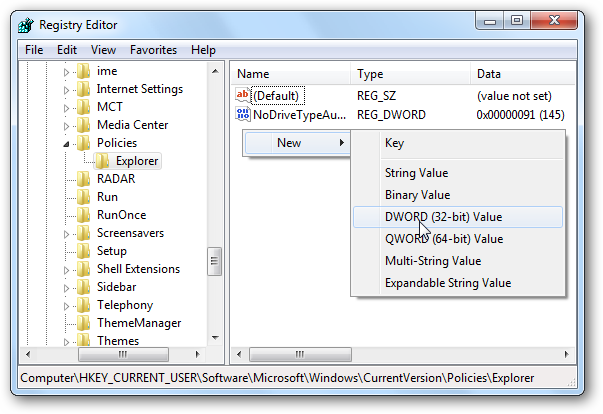
Then navigate to HKEY_CURRENT_USER\Software\Microsoft\Windows\CurrentVersion\Policies\Explorer and create a new DWORD Value.

Name it
Disallow.Cpl and give it a value of 1.

Next create a new key and also name it
DisallowCpl.

Now within the
DisallowCpl key, create a new String value for each of the items you don’t want showing in Control Panel.

For example, here we’ll remove the icons for Sync Center, Sound, and Speech Recognition.

So for each String Value name and Value data field, enter the item
you want removed and close out of Registry Editor. Actually you can give
it any Value name you want, but keeping it the same makes things easier
to find later.

You should be able to see the results by closing and reopening
Control Panel, but if not, log off and back on again. Here you can see
we no longer have the items listed in Control Panel. Go through the
above steps for whatever you want removed from Control Panel.

Hide Control Panel Items Through Group Policy
Sometimes you might want to hide an item in the Control Panel
permanently or for a short period of time. Here we take a look at hiding
them through Local Group Policy Editor.
Note: Keep in mind Group Policy is not available in Home versions
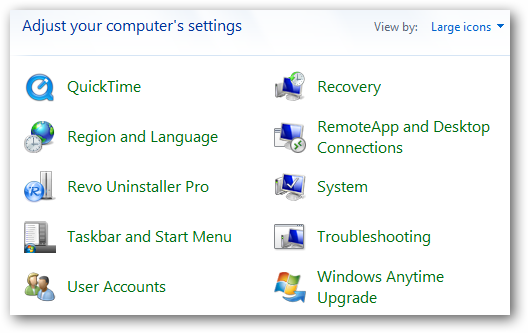
of Windows. For this demonstration we’re going to hide QuickTime &
Sync Center since we never use them.

To open Group Policy type
gpedit.msc into the Search bar in
the Start Menu and hit Enter. Alternately, if you find yourself in Group
Policy a lot, check our article on how to
create a shortcut to Group Policy Editor in Windows 7.

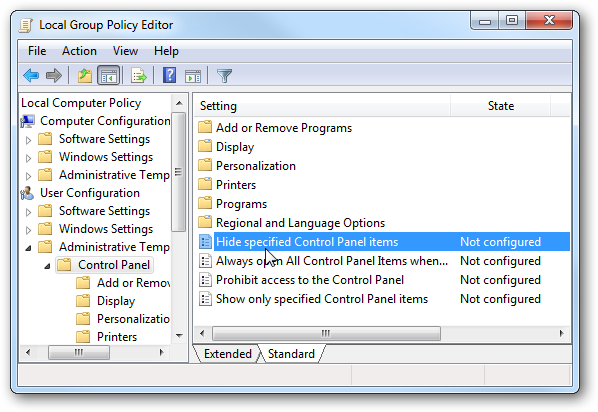
Local Group Policy Editor opens and you want to navigate to User
Configuration \ Administrative Templates \ Control Panel. In the right
pane double-click on
Hide specified Control Panel items.

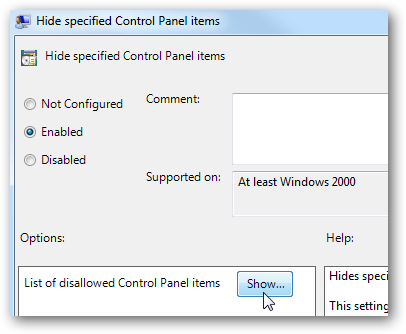
Select Enabled and under Options you will see
List of disallowed Control Panel items…click on the Show button.

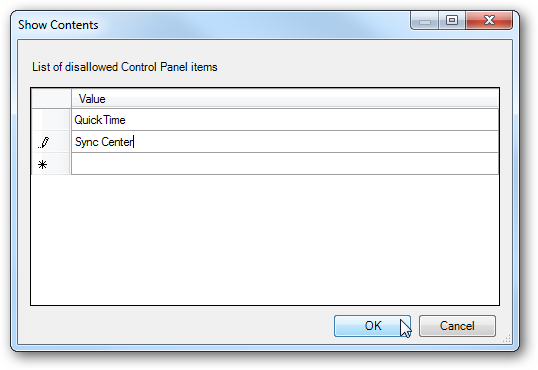
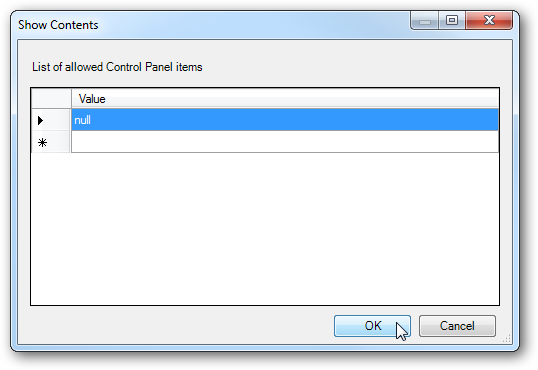
This will bring up a window where you can enter in the items you
don’t want displayed in the Control Panel. In each Value field we’ll
type in QuickTime and Sync Center then click OK.
 Note: You might want to use proper Canonical names so for example
Microsoft.SyncCenter. In our tests we had success without using the
Canonical names. If you experience problems not using Canonical names
leave a comment and let us know.
Note: You might want to use proper Canonical names so for example
Microsoft.SyncCenter. In our tests we had success without using the
Canonical names. If you experience problems not using Canonical names
leave a comment and let us know.
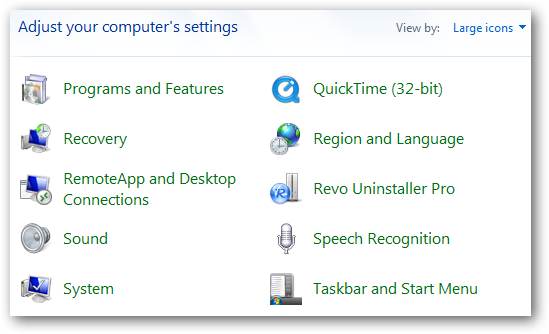
Click OK again and close out of Group Policy Editor. If you already
had Control Panel open close and reopen it again to refresh the view. As
you can see, QuickTime and Sync Center is no longer listed.

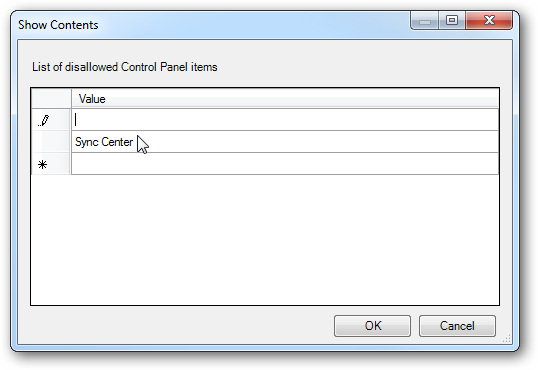
The neat thing about using Group Policy Editor is that you can unhide
an item if you need to by going back and deleting a certain value. For
instance we want to show QuickTime again, so we’ll delete the Value.

All you need to do is highlight the value and clear the field…and we’re done. The QuickTime icon is back.

Allow Only Certain Items or Hide them All
The method above works well for removing certain items from the
Control Panel. But if you only want to show a few items, you don’t want
to type them all in. So instead select
Show only specified Control Panel items.

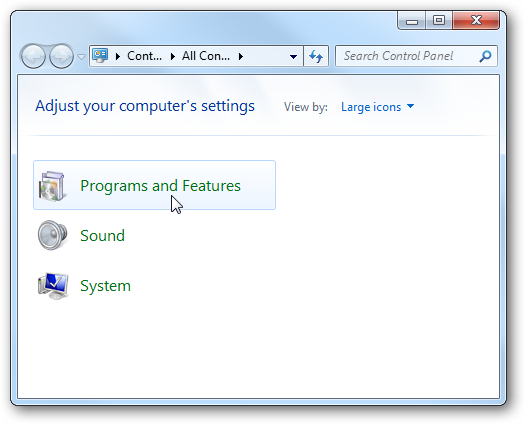
Then type in only the items you want to be shown. For example we only
want Programs and Features, System, and Sound to be displayed.

Now when you open Control Panel, only the items you want will be displayed.

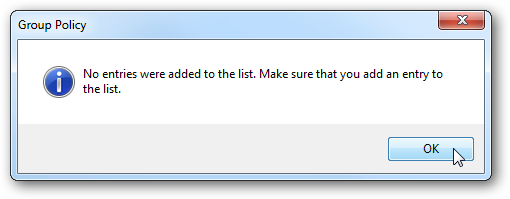
If you don’t want anything displayed at all for some reason you can
do that as well. If you try to keep the value field empty, you’ll get
the following error.

So in the value field type in
null then OK and close out of Group Policy Editor.

Then when you open Control Panel…There’s nothing to see here…move along.

Removing items from Control Panel can be useful if you you no longer
need an icon for an uninstalled item, want to clean out the clutter, or
just don’t want users to see them. There are many ways to go about it,
and this guide should get you started managing what’s shown in Control
Panel. One of the easiest ways to do it is through Group Policy Editor,
but unfortunately it isn’t available in Home versions of Windows, so
you’ll need to hack the Registry.

![sshot-2010-09-13-[16-41-14]](http://www.howtogeek.com/wp-content/uploads/2010/09/sshot20100913164114.png "sshot-2010-09-13-[16-41-14]")